
Help · Manual
Transcription
What to set up once, what to do on meeting night, and what the public sees. For clerks and democratic services teams.
A written record of the meeting, as it happens
Transcription listens to the meeting audio you are already broadcasting and turns it into text. The text appears alongside the player on your website while the meeting is running, and stays there afterwards as part of the archive, with a short summary of what was discussed.
It is an optional add-on that works on the broadcast you already run. There is nothing extra to install in the chamber, and no change to your website. It makes no difference whether you stream from the chamber using our app or take the feed from Teams or Zoom.
Before your first transcribed meeting
Transcripts have their own area at text.audiominutes.com (opens in a new tab). Sign in with the same details you use for the customer portal — there is no separate account to set up.
Three things to do once, and then you rarely touch them again.
Turn the add-on on
We do this at our end when your add-on starts. Until it is on, none of the transcription controls appear anywhere — so if you cannot find them, that is the first thing to check with us.
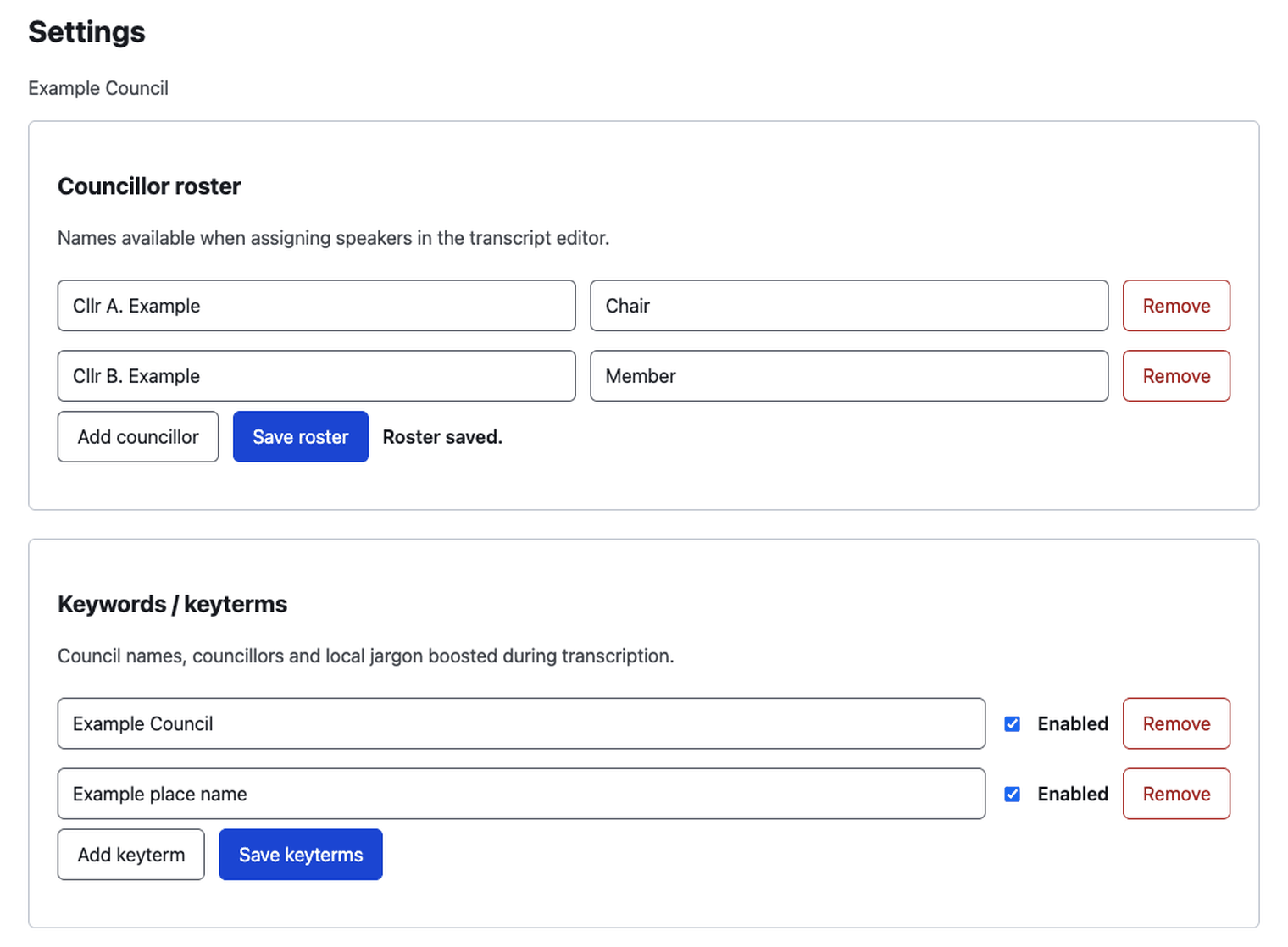
Add your councillors
In Settings, list your councillors and officers with their roles. This is the drop-down you pick from when putting names to speakers. Update it whenever the membership changes.
Add your keywords
Words the transcription should expect to hear: your council's name, ward and place names, councillor surnames, local acronyms. This matters more than it sounds.
Keywords are loaded at the start of each meeting, so anything you add applies from the next meeting onwards. Without them, an unusual place name is likely to come out wrong.
Running a meeting
Transcription is off by default for every meeting, even once your account has it. Somebody has to ask for it, per meeting.
-
01
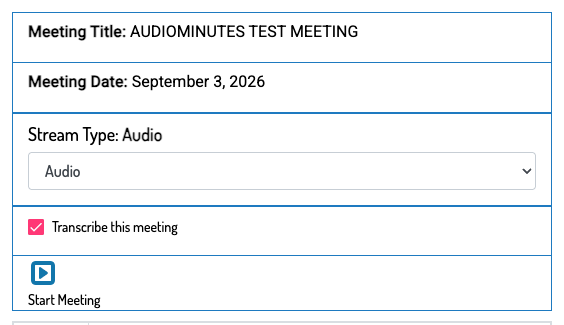
Turn it on for this meeting
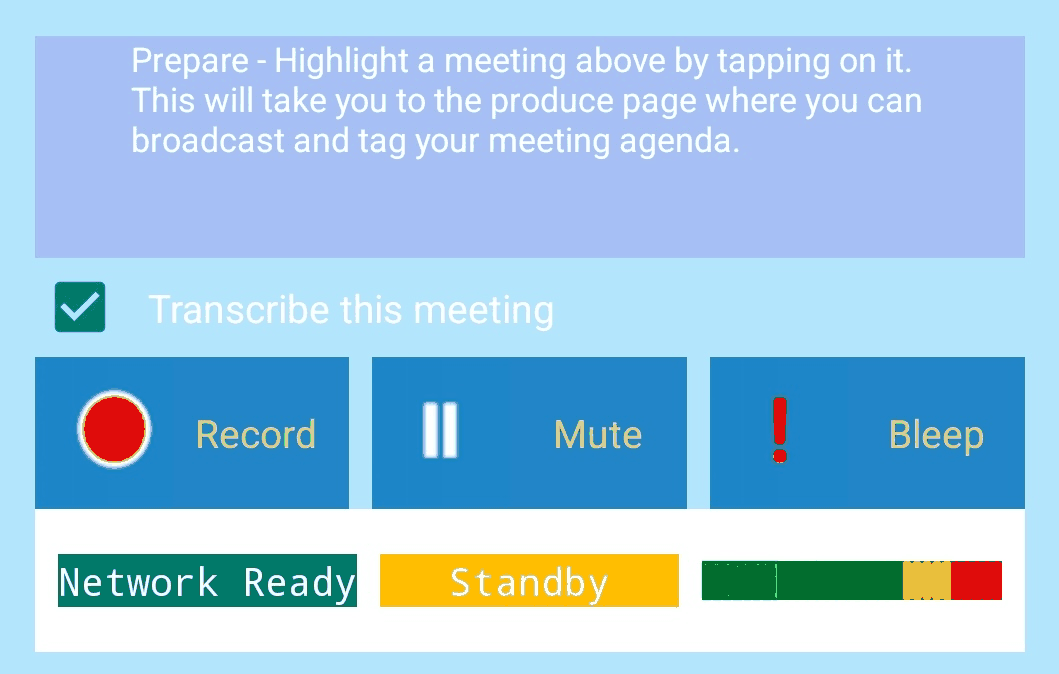
Tick Transcription on the Meeting Controls page in the portal, or tick the same box on the streamer app before you go live. Either works; you only need one.
-
02
Go live as usual
Transcription starts when you start the broadcast, not when the encoder connects. Setting your equipment up an hour early costs you nothing and transcribes nothing.
-
03
During the meeting
Nothing to do. Text appears for the public automatically. If you want to, you can open the meeting and correct a line or put a name to a speaker while it is still running — listeners see the change straight away.
-
04
End the broadcast
Stop the meeting the way you normally do and transcription stops with it. If a Teams or Zoom feed simply drops and nobody presses stop, we close the meeting automatically — but press stop when you can, so the end time on the record is the real one.
Tidying the transcript
Open the meeting after it ends. You can:
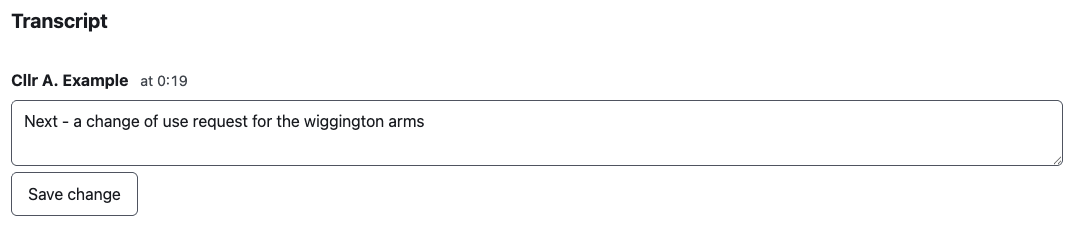
- Correct any line. Click into the text and type. The original is kept; your corrected version becomes the one the public sees.
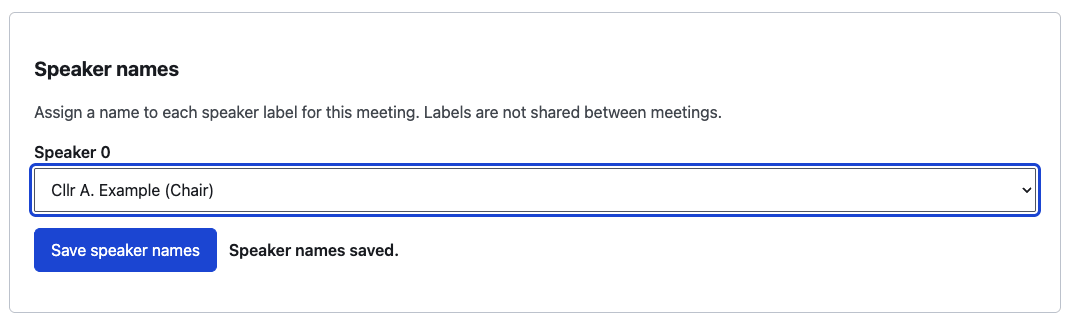
- Put names to speakers. The transcript arrives labelled S0, S1 and so on. Assign each to a councillor from your list, or type a name for a visitor, and every line by that speaker updates at once.
- Remove a line. If something was said that should not be in the public record, taking it out removes it from the live view and from the archive.
- Check the summary. A short summary and a list of topics is written automatically once the meeting ends, and you can edit it.
Every edit is recorded against the person who made it, with the before and after. The record of a public meeting should show what was changed and by whom.
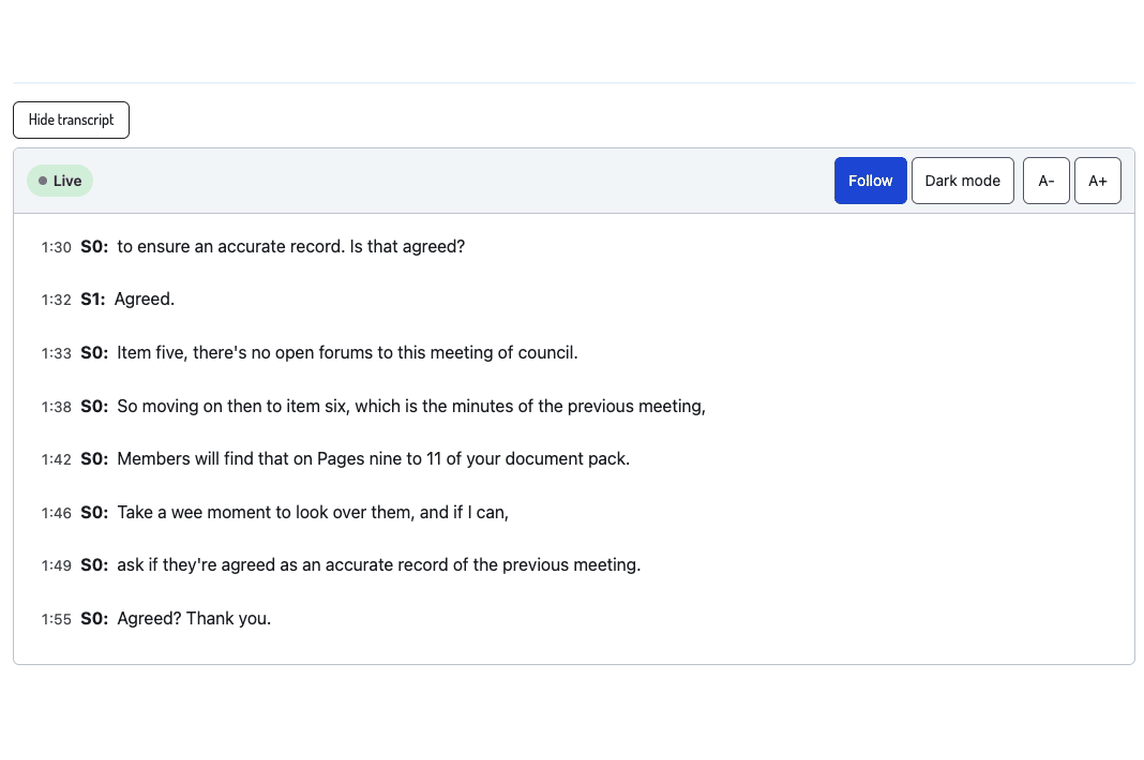
What listeners see
A Show transcript button appears next to the player. Nobody has to sign in. Meetings without transcription are unaffected — the button simply does not appear.
During the meeting
Lines appear as they are spoken and the view follows along. Scroll back to read something and it stops moving; a button brings you back to the latest.
Afterwards
The full transcript with speakers named, and a summary at the top. Clicking any line jumps the audio to that moment.
Agenda items
Items you tag during the meeting appear as headings in the transcript, and in the player's jump-to menu.
Reading it
Light and dark, adjustable text size, keyboard operable, built to WCAG 2.2 AA.
What to expect
Speed
Text is produced within about a second of the words being spoken, and paced to the audio the listener is hearing. A long, uninterrupted speech can take twenty to thirty seconds to appear, because the sentence is only written out once it is finished.
Accuracy
Good on ordinary discussion. Names and local terms are where it slips, and that is what the keywords list is for. Expect to correct a handful of lines, not to rewrite the meeting.
Speaker names do not carry over
Voices are separated reliably within a meeting, but a person is not recognised from one meeting to the next. Names have to be assigned each time — a couple of minutes per meeting, and on our list to improve.
Audio, not video captions
The transcript covers the meeting audio. It is not the same thing as captions on a video stream, and should not be described as captions in an accessibility statement.
If something looks wrong
- No transcript at all
- Almost always the per-meeting tick box. It is off unless somebody turns it on, and it cannot be applied afterwards.
- No transcription controls anywhere
- The add-on is not switched on for your account. Contact us.
- Everyone shows as S0, S1, S2
- Normal until names are assigned for that meeting.
- A name or place is wrong throughout
- Correct it in the transcript, then add it to your keywords so the next meeting gets it right.
- The transcript stops part-way
- Usually the audio feed dropped. Send us the meeting name and date and we will look at the logs.
Still stuck?
Tell us the meeting name and date. If it's meeting night, call.